Group Filtering: Show Each Brand, Office or Department Only the Cards That Belong to It
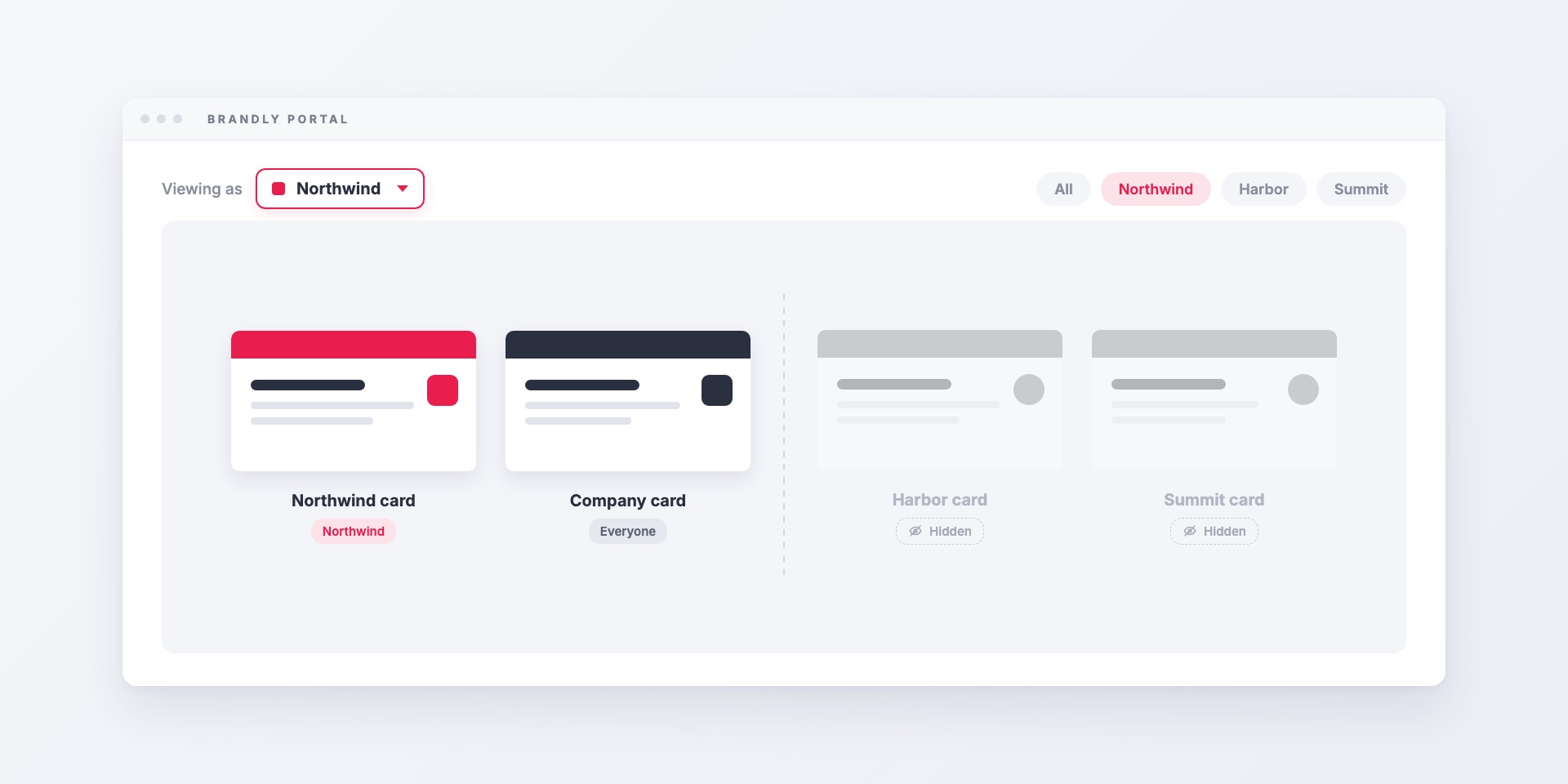
A single business card portal works well while there’s one brand and one card design. Things get harder as the company grows. A parent company may have three brands, each with its own logo. Sales and engineering might want different card backs. The London office has its own letterhead and its own address. Put all of that in one portal and every employee scrolls past a dozen designs that aren’t theirs. Sooner or later someone orders the wrong one.
The usual workaround is a separate portal for each brand or department. That means separate admins, separate employee lists and separate billing, and nobody has a view of the whole company. Group filtering solves this inside one portal. Each person sees only the designs meant for them, and admins still manage everyone in one place.
How group filtering works
Group filtering has two parts. People are assigned to groups, and products are made available to groups.
1. Put each person in a group
When group filtering is turned on, a Group field is added to each team member’s profile. Your admins create the list of groups, such as brand names, offices, departments or regions, and assign each person to one.
By default, only admins can change someone’s group. Employees can’t move themselves into another brand to order its cards. If people at your company really do work across groups, you can let them switch their own group.
2. Set who each design is available to
Every template in your portal has an Available to setting. It can be:
- Everyone, for designs the whole company shares
- Admins, for designs only admins should order
- A specific group, such as a brand, office or department
Catalog items work the same way. If your portal includes letterhead, envelopes, name badges or promotional items, you can limit each product category to the groups it belongs to.
What employees see
When an employee signs in, they see the designs available to everyone plus the designs for their own group. Nothing else appears. A rep at Brand A sees Brand A’s card and the company-wide notepad, and never sees Brand B’s template.
What admins see
Admins get a group selector on their dashboard. They can view the portal as any one group, or switch to All to see every template at once. This is useful when an admin orders cards on someone else’s behalf, or checks that a new design is set up for the right people.
It filters more than templates
The group someone belongs to carries through the rest of the portal too:
- Shipping addresses. You can tag an office address with a group. People in that group see their own office addresses at checkout and not every location the company has. Addresses without a group stay available to everyone.
- Team management. The team members list can be filtered by group, so a brand manager can quickly see who’s on their team and who still needs cards.
- Invoicing. On monthly invoicing, the group can fill in the cost center on each order, so finance can split the invoice by brand or department without asking anyone.
Who it’s built for
Group filtering is most useful for larger teams, where one portal has to serve several parts of the company:
- Multi-brand companies, where each brand has its own logo, colors and card design but shares one buying process
- Franchises and dealer networks, where every location needs its own address and some locations have their own designs
- Departments with different cards, such as sales cards with a QR code and engineering cards without one
- Regional offices, each with its own address block, phone format or language
If you’ve been running a separate portal for each of these, group filtering lets you combine them. You keep one admin team, one employee list and one billing setup, and every employee still sees only their own designs.
Getting started
Group filtering is turned on by the Brandly team. Contact us and tell us how your company is organized. We’ll turn it on, help you set up your group list, and set each template’s availability with you.
If your groups use other items besides business cards, read about letterhead, envelopes, name badges and more in your portal. If you’re still comparing options, start with what a business card portal is.
Set Up Your Free Business Card Portal
Get Started