SAML Single Sign-On for Your Business Card Portal: Okta, Entra ID, JumpCloud and Ping
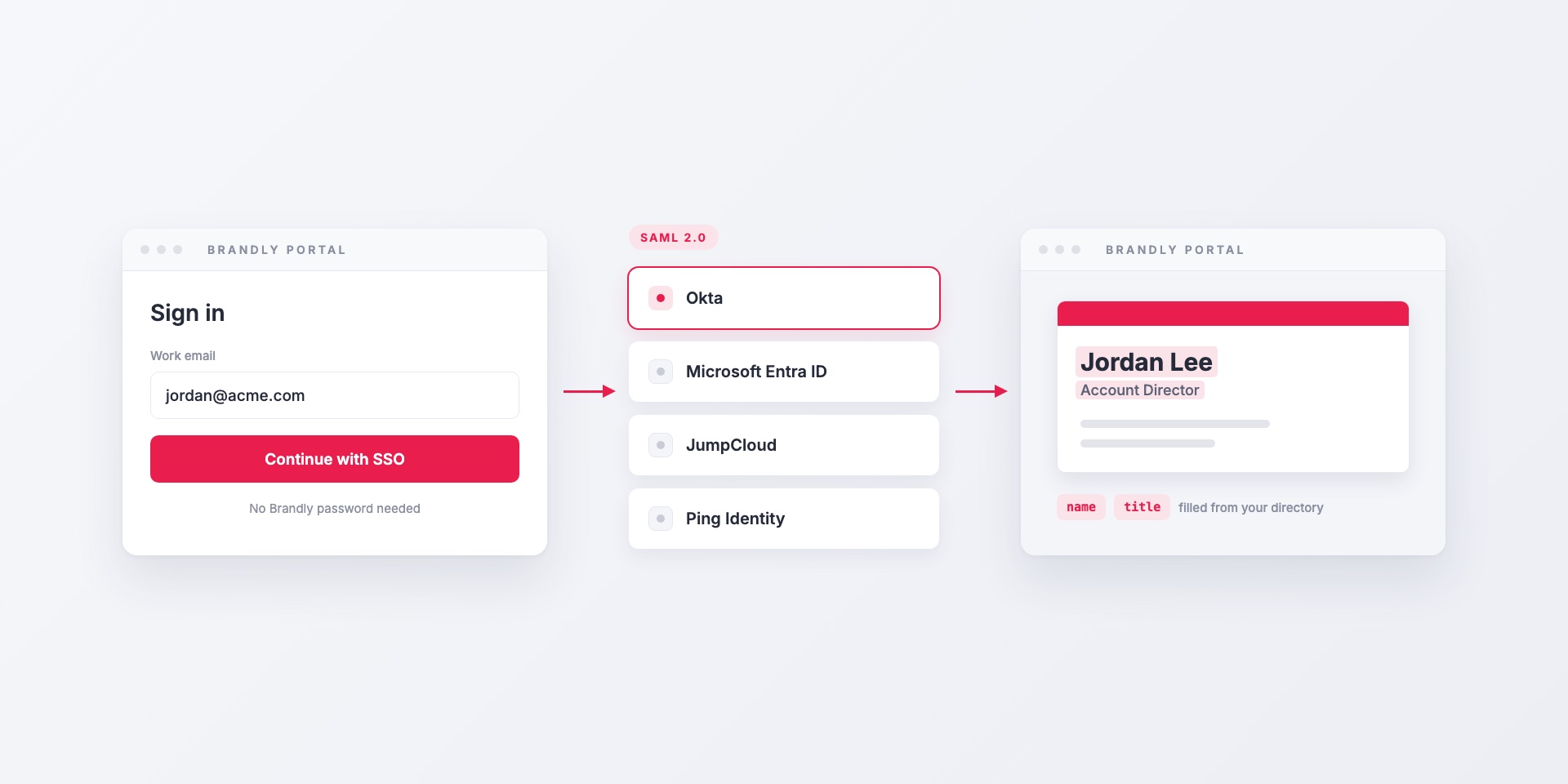
For a lot of companies, the business card portal isn’t approved until it passes the IT checklist, and the first item on that list is usually single sign-on. Employees shouldn’t need another password, and IT wants access to sit in the identity provider along with every other tool.
Brandly supports SAML 2.0 single sign-on. It works with Okta, Microsoft Entra ID (formerly Azure AD), JumpCloud, Ping Identity, Google Workspace, OneLogin and any other identity provider that speaks SAML 2.0. This post covers what your employees see, what IT gets, and how to set it up.
What your employees see
Once SSO is on, employees sign in with their work account. Brandly sends them to your identity provider and back, without a Brandly password. They can get in two ways:
- From www.brandly.com. They type their work email, and Brandly recognizes your company’s email domain and sends them to your identity provider.
- From your portal’s join link. This is the link you share with your team. Anyone your identity provider lets through can sign in, whatever their email domain.
If your identity provider asks for MFA, Brandly doesn’t change that. The same policies apply here as on every other app.
What IT gets
Accounts are created on first sign-in
Brandly uses just-in-time (JIT) provisioning. You don’t need to create users in Brandly ahead of time.
- New users get a Brandly account the first time they sign in through SSO, and they join your team automatically.
- Existing users are linked by email address. Anyone who already orders cards through Brandly keeps their account and order history when you switch to SSO.
Card details come from your directory
Your identity provider can pass profile details along with each sign-in, such as name, title and phone numbers. Brandly writes them to the employee’s profile, which is what fills in their business card template. The details update every time the person signs in, so when HR changes someone’s title in the directory, their next card shows the new title without anyone retyping it.
No SCIM, so plan offboarding
Brandly doesn’t support SCIM. Your identity provider can’t push changes to Brandly between sign-ins, and it can’t tell Brandly when someone leaves. Removing a person from your identity provider stops them signing in through SSO. Remove them from your Brandly team as well, as part of your normal offboarding checklist.
Which attributes to map
Your identity provider needs two things set up: the NameID and the attributes.
NameID. Set the NameID to the user’s email address. Brandly matches accounts by email, so this part is required.
Attributes. These are optional, but they’re what makes SSO useful for business cards. Use plain attribute names without a namespace or URI prefix.
| Attribute | What it does |
|---|---|
name |
Display name. Brandly splits it into first and last name automatically. |
first_name and last_name |
Use these instead of name if you want to control the split. |
Your template fields, such as title and phone numbers |
Fill the matching fields on the employee’s profile and card. |
Pass either name or first_name plus last_name. The exact attribute names for your template fields, including titles and phone numbers, are listed on the SSO Settings page in your portal.
A few tips from teams that have done this:
- Start with name and title. Those two matter most on a card and are usually accurate in the directory.
- Only map fields your directory keeps current. If phone numbers in your identity provider are years out of date, leave them out. Otherwise each sign-in will overwrite a correct number with the stale one.
- Consider the given name for
first_name. Lots of people go by a different first name than their legal one, and that’s the name they want on their card. - Multiple offices? We can also map a location attribute to an office address saved in your portal. Ask us to turn it on.
How to set it up
Setup has three parts. Most teams finish in under an hour, and it’s mostly time spent in the identity provider.
1. In Brandly: download the Brandly metadata
- Make sure SSO is turned on for your portal. It’s part of Business Plus. If you don’t see it, email [email protected].
- Go to Settings → Sign-On Settings → SSO Settings.
- Click Download Brandly Metadata. The page also shows Brandly’s Entity ID and ACS URL if your identity provider wants them entered by hand.
- Check the email domains listed. Usually we’ve added your main domain already. If you have more than one, add them all so everyone gets sent to SSO from www.brandly.com.
2. In your identity provider: create the app
- Create a new SAML application and upload the Brandly metadata, or enter the Entity ID and ACS URL.
- Set the NameID to the user’s email address.
- Add your attribute mappings.
- Assign the users or groups who should have access.
- Download your identity provider’s metadata XML.
3. Back in Brandly: connect, test and roll out
- On the SSO Settings page, upload your identity provider’s metadata file or paste the XML.
- Go to Settings → Sign-On Settings and add Single Sign-On to the Join with link options.
- Log out, then open your portal join link and sign in through SSO. Or send the link to a colleague and have them try it.
- Once that works, share the join link with your team.
Notes for each identity provider
The steps above apply to any SAML 2.0 provider. Here’s where the settings are in the four we’re asked about most.
Okta
In the Okta Admin Console, go to Applications → Create App Integration and choose SAML 2.0. Paste Brandly’s ACS URL into Single sign-on URL and the Entity ID into Audience URI (SP Entity ID). Set Name ID format to EmailAddress and Application username to Email. Add name and title under Attribute Statements, assign the app, then copy the metadata from the app’s Sign On tab.
Microsoft Entra ID
In the Entra admin center, go to Enterprise applications → New application → Create your own application and choose the non-gallery option. Under Single sign-on, pick SAML. Enter the Entity ID as the Identifier and the ACS URL as the Reply URL, or upload the Brandly metadata file.
Entra adds a long namespace URI to every claim by default. Brandly expects plain names, so edit each claim, clear the Namespace field, and rename it to name, title and so on. Make sure the unique user identifier is an email attribute. Then download the Federation Metadata XML and assign users or groups.
JumpCloud
In the JumpCloud Admin Portal, go to SSO Applications → Add New Application and choose a custom SAML app. Enter Brandly’s Entity ID as the SP Entity ID and the ACS URL as the ACS URL. Give the app its own IdP Entity ID. Set the SAMLSubject NameID to email, add your attributes, and bind the user groups that need access. Export the metadata once you’ve saved the app.
Ping Identity
In PingOne, go to Applications, add a new application and choose SAML. Import the Brandly metadata or enter the ACS URL and Entity ID. Map the SAML_SUBJECT to email, add your attribute mappings, and enable the app for the right groups. Then download the metadata from the app’s configuration tab.
Something not working?
The SSO Settings page keeps a log of recent sign-ins, along with the attributes your identity provider sent each time. If a title isn’t showing up on cards, check the log first. Usually the attribute has a namespace, a different name, or is missing entirely. If the log doesn’t explain it, email [email protected] and we’ll go through it with you.
What it costs
SAML SSO is included in Business Plus, which is $99 a year per team. There’s no extra charge for setup, and we’ll help you configure your identity provider if you need it.
Where to start
If your team already uses Brandly, upgrade to Business Plus from Billing → Plan, then follow the steps above. If you’re still comparing options, read what a business card portal is first. If you’d like help before you start, contact our team and we’ll walk your IT team through it.
Set Up Your Free Business Card Portal
Get Started