Okta SSO for Your Business Card Portal: Setting Up Brandly with Okta
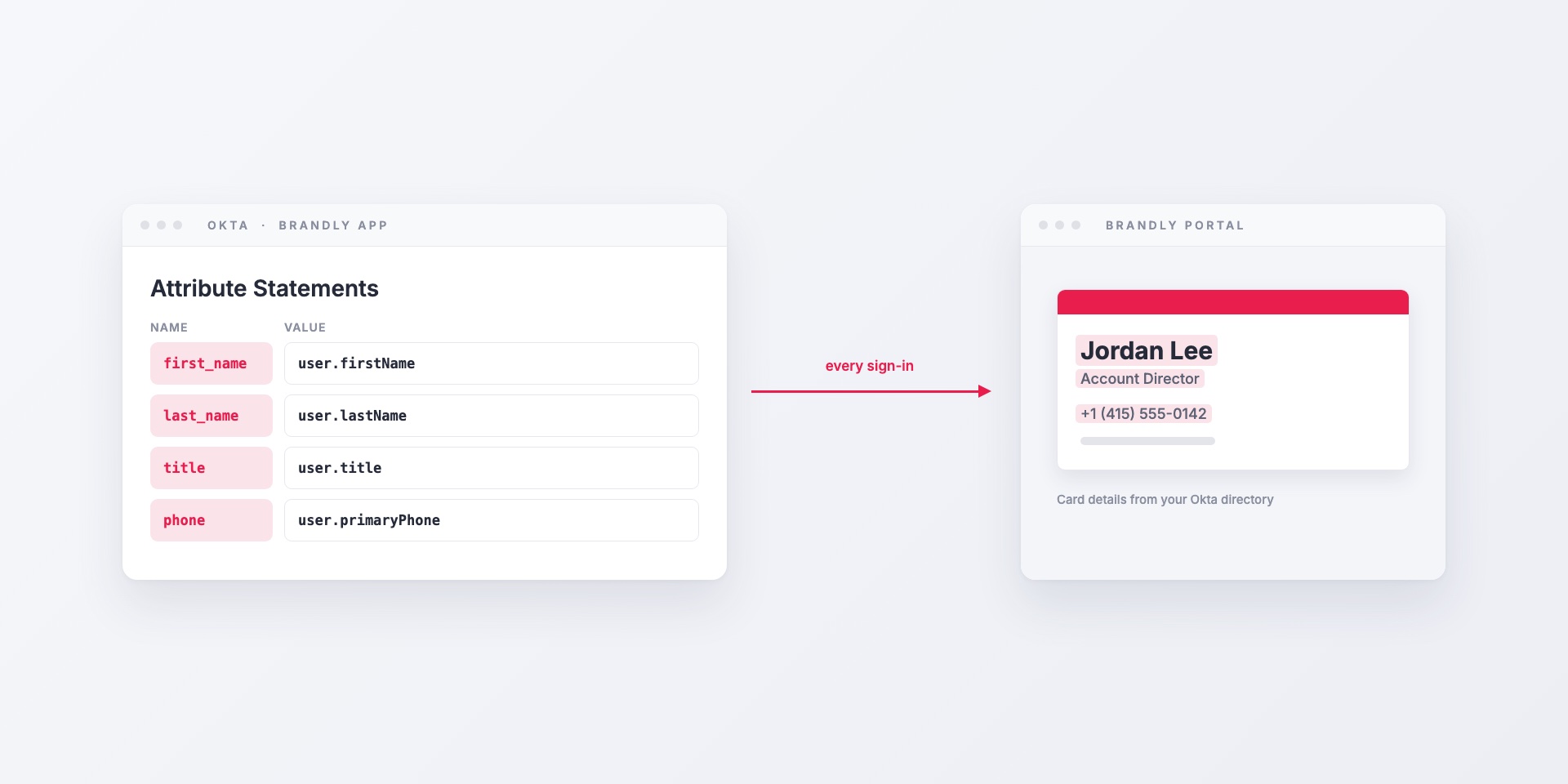
If your company runs on Okta, your business card portal should too. With Okta single sign-on, employees open Brandly with the same Okta login they use for everything else. Okta decides who gets in, and the name and title on each person’s card come straight from your Okta directory.
This post covers the Okta side of the setup. For how Brandly SSO works with any identity provider, including Entra ID, JumpCloud and Ping, see our SAML single sign-on guide.
Quick takeaways
- Brandly connects to Okta as a custom SAML 2.0 app integration.
- Set the Name ID to the user’s email. Brandly matches accounts by email.
- Attribute statements send name, title and phone numbers from Okta to Brandly, and they update every time someone signs in.
- Accounts are created the first time someone signs in. There’s no SCIM, so remove leavers from your Brandly team as part of offboarding.
- SSO is included in Business Plus at $99 a year, with free setup help.
What changes for your team
For employees
Employees sign in to Brandly with Okta. At www.brandly.com they enter their work email and go straight to your Okta sign-in page. They can also use your portal’s join link. Whichever way they come in, they don’t have a Brandly password to remember or reset.
Your Okta sign-on policies apply as usual. If Okta requires MFA or a managed device, it requires them for Brandly too.
For IT
- Access follows Okta assignments. Only people assigned to the Brandly app in Okta can sign in through it, so you can give access by group.
- No pre-provisioning. A person’s Brandly account is created the first time they sign in. Employees who already order through Brandly are linked by email and keep their order history.
- Okta is the source of truth for card details. When HR updates a title in Okta, the person’s next business card shows it.
Set up the Okta app integration
Before you start, an admin on your Brandly portal should open Settings → Sign-On Settings → SSO Settings. That page has Brandly’s Entity ID and ACS URL, and a Download Brandly Metadata button. If you don’t see SSO Settings, it needs Business Plus. Email [email protected] and we’ll turn it on.
1. Create the app
- In the Okta Admin Console, go to Applications → Applications and click Create App Integration.
- Choose SAML 2.0 and click Next.
- Name the app Brandly and click Next.
2. Configure SAML
| Okta field | Value |
|---|---|
| Single sign-on URL | Brandly’s ACS URL |
| Use this for Recipient URL and Destination URL | Checked |
| Audience URI (SP Entity ID) | Brandly’s Entity ID |
| Name ID format | EmailAddress |
| Application username |
3. Add attribute statements
Under Attribute Statements, add the details you want on business cards. Leave Name format as Unspecified, and use the attribute names exactly as Brandly lists them, without a prefix.
| Name | Value |
|---|---|
first_name |
user.firstName |
last_name |
user.lastName |
title |
user.title |
You can send phone numbers the same way, using values like user.primaryPhone or user.mobilePhone. The attribute names Brandly expects for your template’s phone fields are listed on the SSO Settings page.
Some tips for Okta:
- Preferred names. If your directory keeps a preferred name in
user.nickName, you can put it on cards with the valueuser.nickName != null ? user.nickName : user.firstName. Employees get the name they actually use, and anyone without a nickname gets their first name. - Only send what Okta keeps current. Brandly overwrites a field at every sign-in, so an out-of-date phone number in Okta would replace a correct one in Brandly. If a field isn’t maintained in Okta, leave it out.
- Start with name and title. Those matter most on a card, and they’re nearly always accurate in Okta.
When Okta asks how you’ll use the app, choose that you’re an Okta customer adding an internal app, then click Finish.
4. Assign people
On the app’s Assignments tab, assign the groups who order business cards. Assigning a group means new hires get access as soon as they’re added to it.
5. Give Okta’s metadata to Brandly
- On the app’s Sign On tab, open the Metadata URL and save the XML.
- In Brandly, go to SSO Settings and upload the file, or paste the XML.
- Go to Settings → Sign-On Settings and add Single Sign-On to the Join with link options.
- Log out of Brandly, open your portal join link, and sign in with Okta.
If a title or name doesn’t come through, check the sign-in log on Brandly’s SSO Settings page. It shows the attributes Okta sent. The usual culprit is an attribute name that doesn’t match exactly.
Offboarding
Brandly doesn’t support SCIM, so Okta can’t push changes to Brandly between sign-ins. Deactivating someone in Okta or unassigning them from the app stops them signing in with SSO. Remove them from your Brandly team as well, so they’re gone from your member list and approvals. It’s worth adding that step to your offboarding checklist.
Get started
If your team already orders cards through Brandly, upgrade to Business Plus from Billing → Plan, then follow the steps above. We set up SSO at no extra charge. If you’d rather have help with the Okta side, email [email protected] and we’ll go through it with your IT team.
Using a different identity provider? Our SAML single sign-on guide covers Entra ID, JumpCloud and Ping.
Set Up Your Free Business Card Portal
Get Started