10 Inspiring Examples of Social Media Icons on Business Cards (+ Free Icon Pack)

Social media can drive awareness and trust long after a meeting. Adding social media icons to your business cards helps new contacts find and follow you fast—without cluttering your design.
Below are 10 design approaches with examples you can apply right away.
Free Social Icons Pack
If you’d rather skip the yak and just want to get started designing a business card with perfect looking social icons (and more), here’s something for you:
Download Brandly’s Business Card Icons Pack
1. Use Branded Social Icons
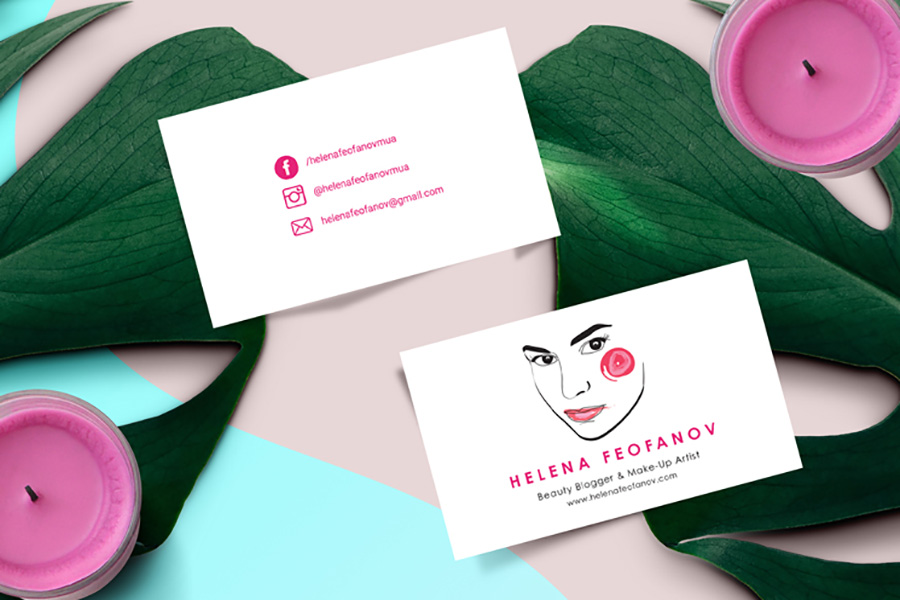
Designed by PauPau Design For Helena Feofanov
This two-tone business card keeps things simple by having the owner’s name, title, and website on one side and their social media icons on the other side. The email address is included with the social media handles as the preferred contact methods.
2. Creative Illustrated Icons
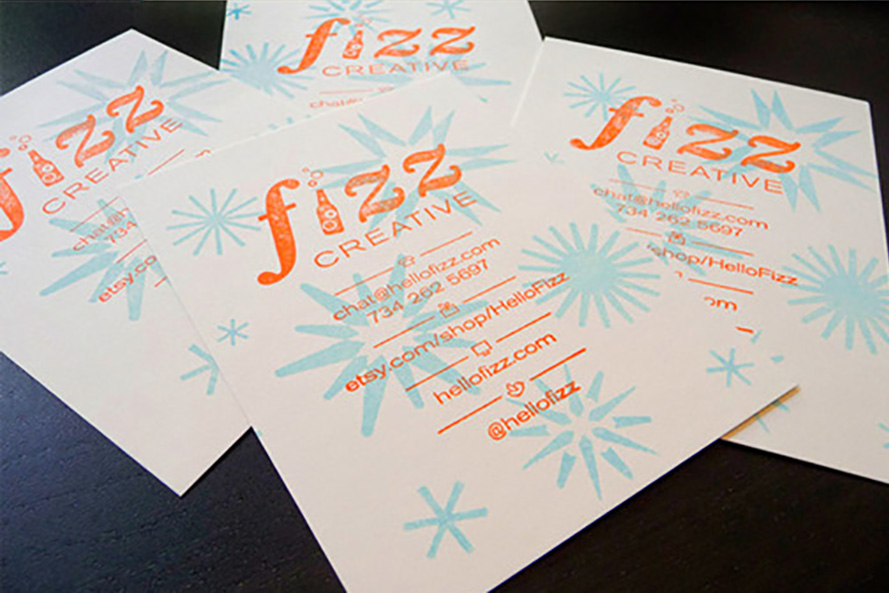
Designed for Fizz Creative Agency
This creative business card design has icons in a stamp effect and a handmade look. The social media handle is listed below the Twitter icon, which has been redesigned to match the illustrated style of the card.
3. Show Your Style
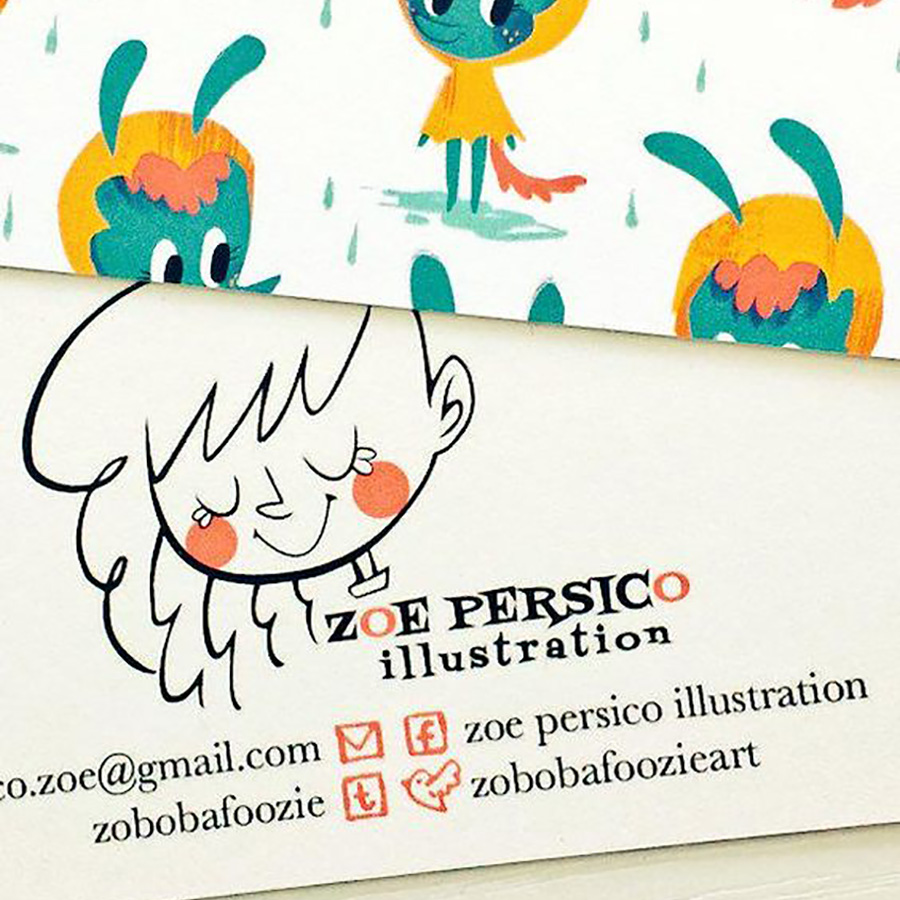
Designed by Zoe Persico for personal branding
This business card features simple social media icons to match the artistic style. In this design, the icons are mirrored next to each other, with a nice contrast between the classic serif font and the illustrated icons.
4. Make Your Card a Link to Your Social Profile
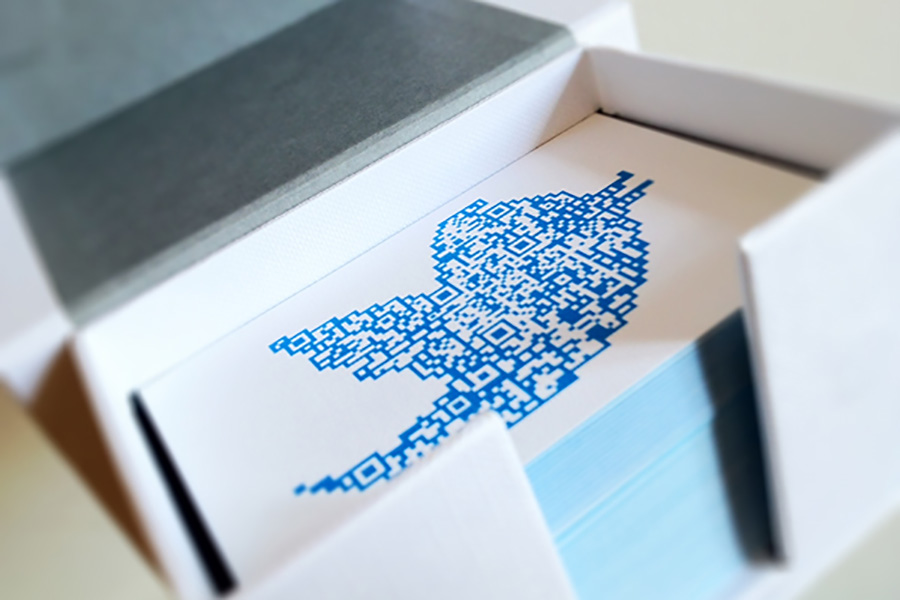
Designed by Antonio Garcia Aprea for personal branding
This card uses the Twitter icon as a scannable QR code, which directs people to follow you on social media when they scan it. Here, the message “Follow Me” becomes an actionable part of the design.
5. Keep it Super Simple
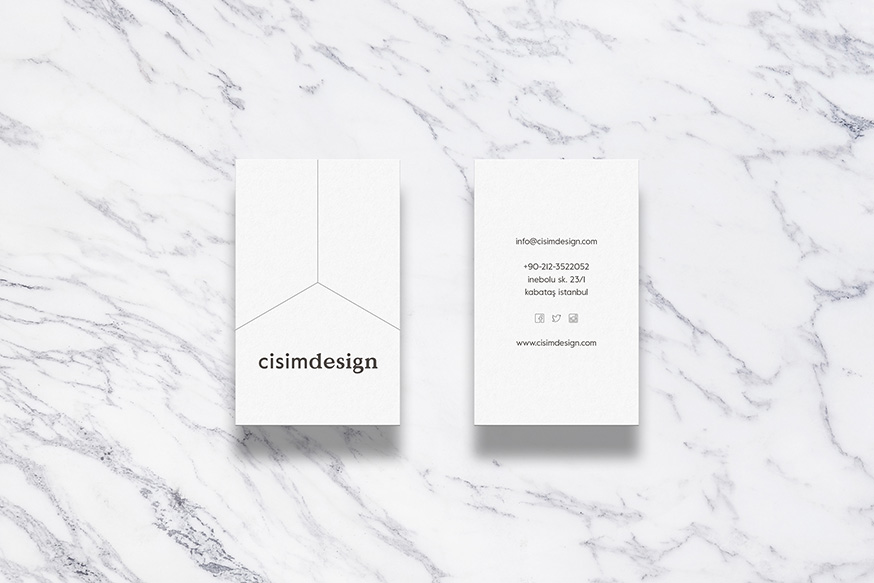
Designed by Tamer Koseli for cisimdesign
Simple often works best. This card uses clean lines and icons only to match the minimalist design and logo. It’s not over-crowded with text, but still clearly indicates which social media platforms to use for contact.
6. Give People What They Know
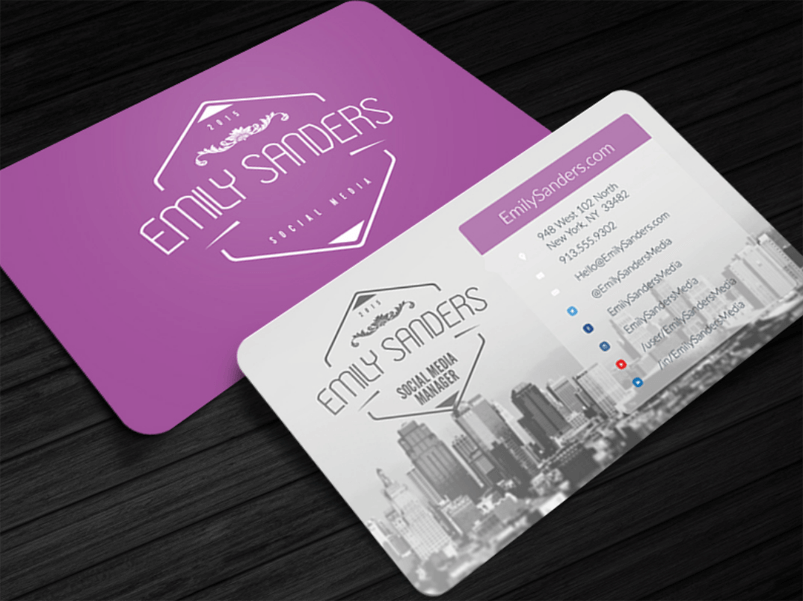
We’re all familiar with the logos of the biggest social media channels. This design retains the branded colors of the social networks so recipients can instantly figure out which platform each handle is for.
7. Make it Purely Social
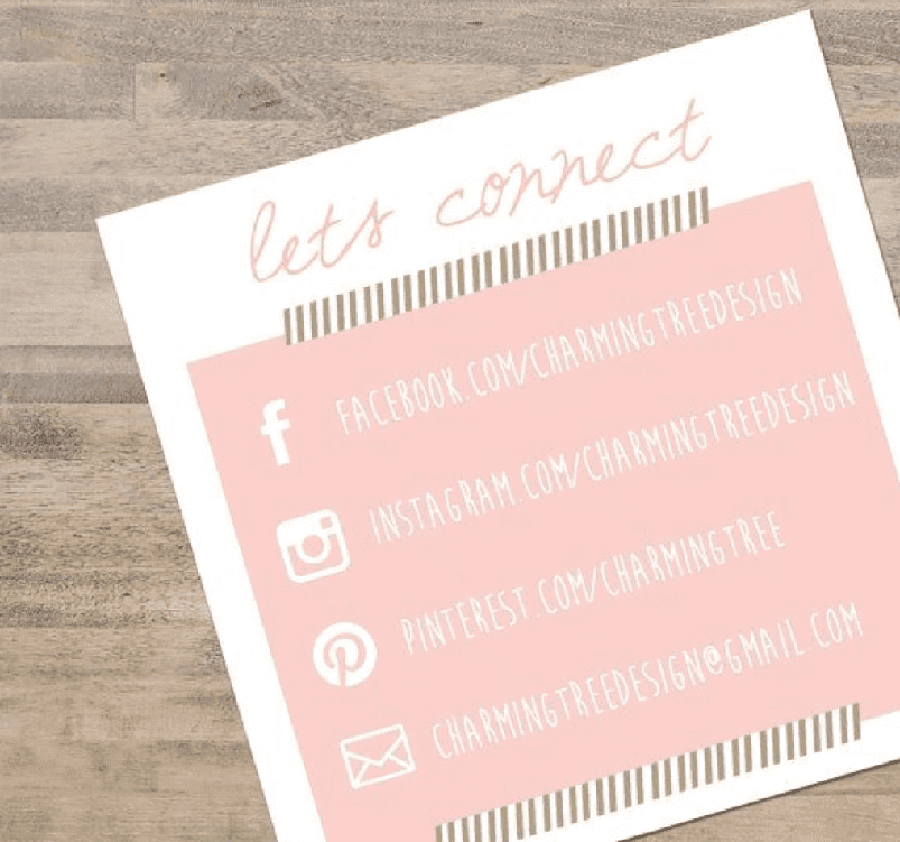
The main features of this business card are the social media icons and handles. The square shape mimics a vintage polaroid photo, which has been associated with Instagram from its beginnings.
For more inspiration on social media icons and handles, check out how to display instagram icons on a business card﹥
8. Create a Clever Contact Card
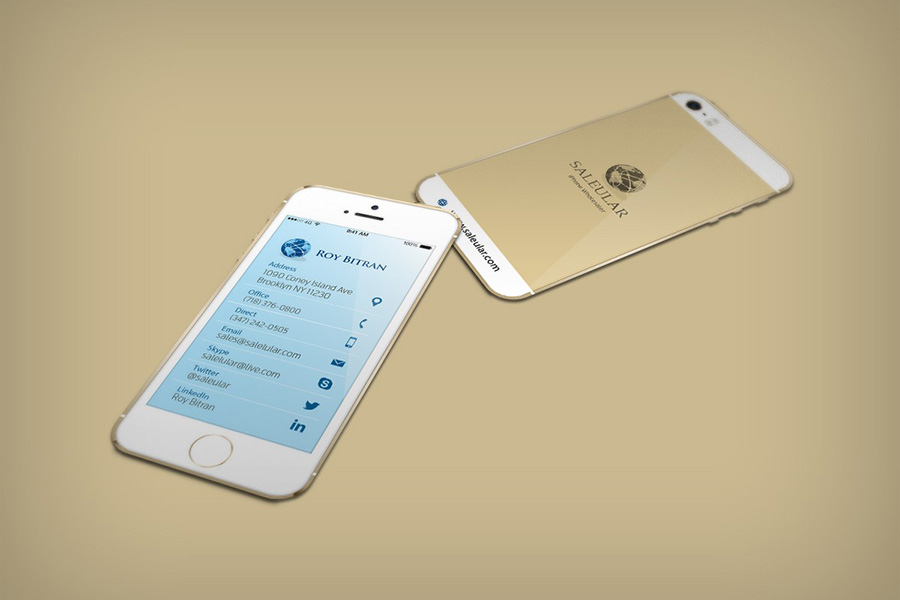
Designed by Ivy Designs for Saleular
A unique and eye-catching design for a business card looks like a cell phone contact book. This layout could be useful when you have a lot of social media sites to share.
9. Pick Your Social Channels Wisely
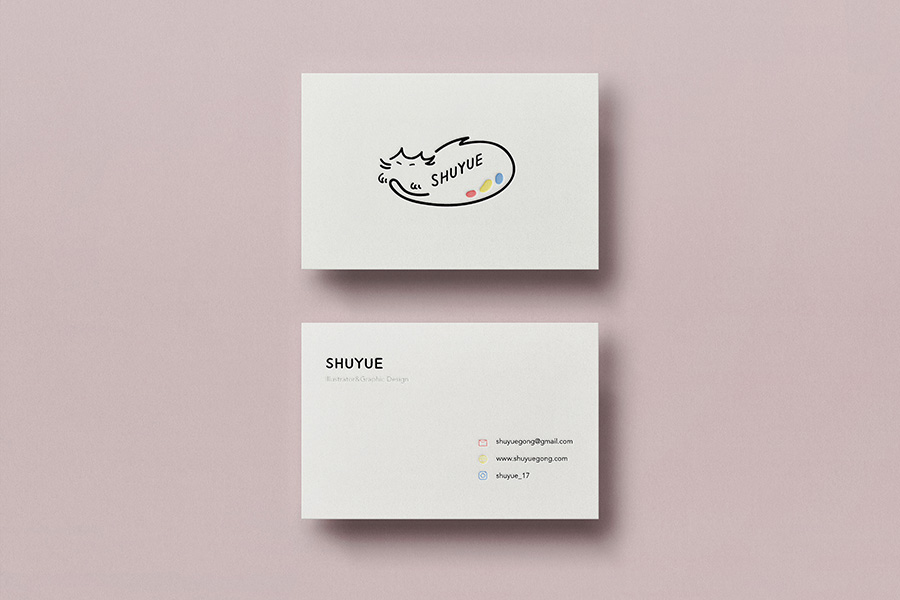
Designed by Shuyue Gong for personal branding.
Sometimes there is only one social media channel that you use. A great way to highlight important contact information is with a simple, clean design.
10. Keep it Colorful
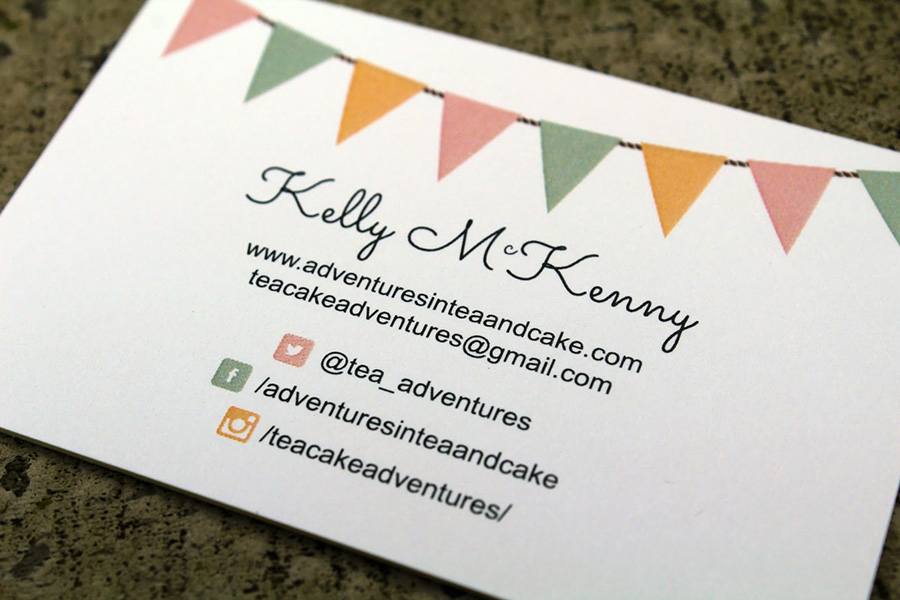
This design utilizes multiple colors, but retains the brand image. Each icon is differentiated by a color that matches the logo, instead of their typical colors.
This keeps the design consistent while also making sure the social media icons are recognizable to the recipient.
Get Social With Your Business Cards
We’ve spoken before about the key things you need to consider when designing your business card and why we believe that if you haven’t added your social media handles on them, you might be missing out on the opportunity to get an extra source of traffic and visibility.
Ready to pack your design with the best social media icons?
Set Up Your Free Business Card Portal
Get Started