Professional Email Signatures: What to Include, Examples and Best Practices
What to put in a professional email signature, with examples, size guidelines, and how to add one in Gmail, Outlook and Apple Mail or set them up for a whole team.
 By Brandly Team
Digital Products
On this page
A professional email signature has your name and job title, company name and logo, one phone number and your website, in four to six lines. Keep it under about 600 pixels wide, use the same logo and colors as your business cards, and add one link to the next step if it fits your role.
An email signature is the block of contact details at the end of every email you send. It’s the business card you hand out in every message, and for most companies it’s seen far more often than the card itself.
This guide covers what to put in a signature, how big it should be, examples you can copy, how to add one in each email app, and how to keep signatures consistent across a whole team.
If you want to skip ahead and build one now:
Create a free email signature with Brandly’s generator
What to include in an email signature
A good signature answers two questions: who sent this, and how do I reach them? Everything else is optional.
- 1. Name and titleYour full name, then your job title and company. The first thing people look for.
- 2. LogoOne small company logo. It's what makes the signature look like your brand.
- 3. Contact detailsOne phone number, your email and your website. Skip anything people won't use.
- 4. Call to actionOptional. One link to the next step: a quote, a booking page, a demo.
- 5. Legal lineOnly if your company or country requires it, such as a registered business name and address.
- 4 to 6 lines
- Of text, not counting
the logo or a legal line - Under 600 px
- Wide, so it fits
every email window - Under 150 px
- Tall, about the height
of a few lines of text - 14 px or larger
- Text size, so it's
readable on a phone
| Include | Usually skip |
|---|---|
| Full name and job title | Quotes and slogans |
| Company name and logo | More than one phone number |
| One phone number | Every social network you’ve ever joined |
| Email and website | Large photos or animated GIFs |
| One call to action, if it fits your role | Long legal notices you don’t need |
Optional extras
- Pronouns, if your company encourages them. Add them after your name.
- A headshot, in roles where people meet you in person, like sales or recruiting.
- Social icons, only for accounts your company actually keeps up. Two or three is plenty.
- An office address, if customers visit you or your industry expects it.
Email signature examples
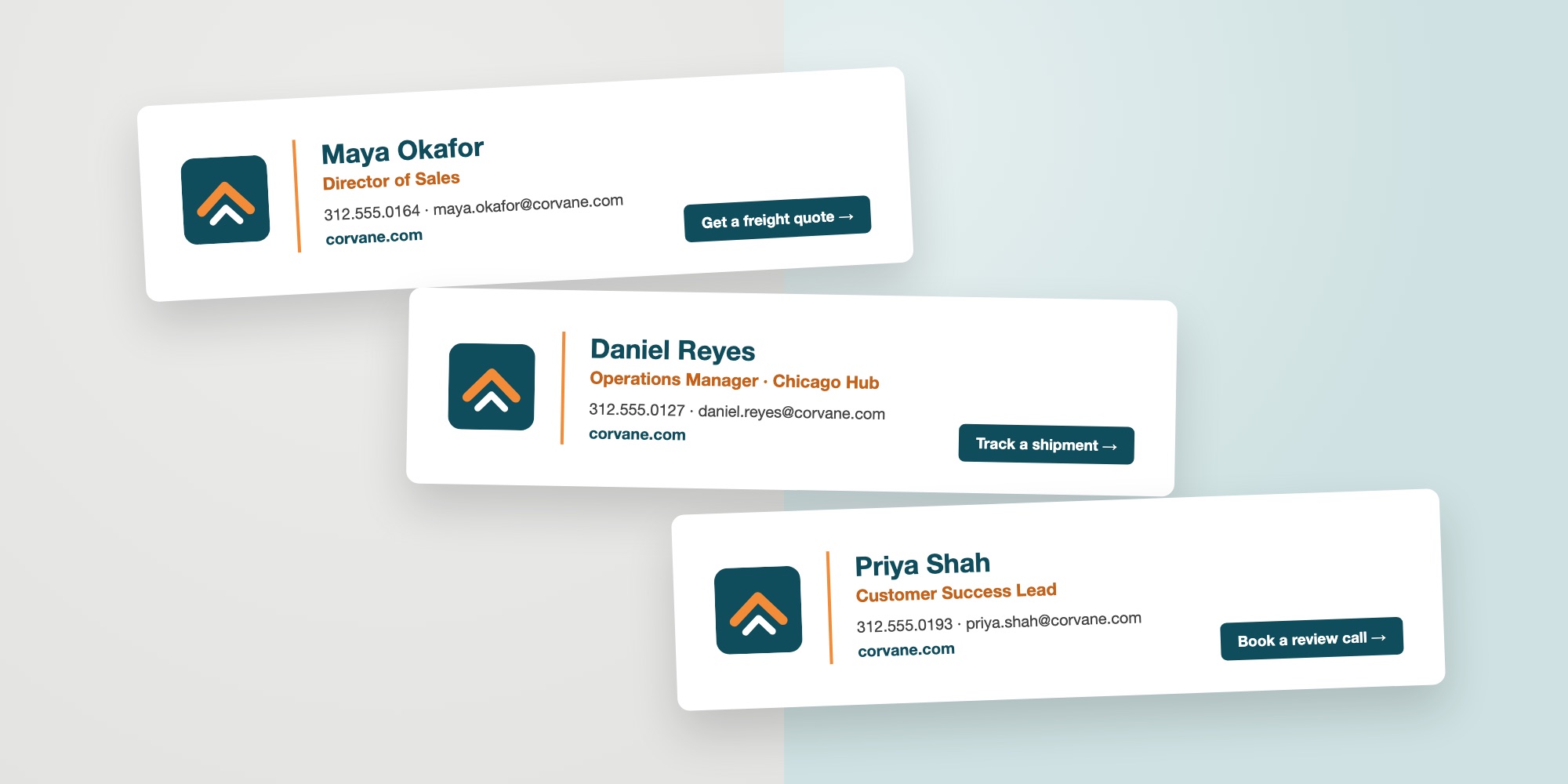
The same company can use different layouts for different roles. What matters is that the logo, colors and fonts stay the same, so every email looks like it came from one company.
Simple
Text only
Fast to set up and reads well everywhere. Good for replies and internal email.
With logo
The everyday standard
Logo, a brand color and the essentials. The right default for most employees.
With a call to action
For customer-facing roles
Adds one clear next step. Best for sales, account management and support.
Email signature design guidelines
Email apps are less predictable than web pages. A signature that looks right on your screen can break in someone else’s inbox. These rules keep it readable everywhere:
- Keep it narrow. Under 600 pixels wide, so it never needs side-scrolling.
- Keep it short. Four to six lines of text, and under about 150 pixels tall with the logo.
- Use standard fonts. Arial, Helvetica, Georgia and Verdana show up the same on almost every device. Custom fonts usually get swapped for a default.
- Use one or two brand colors, and dark text on a white background.
- Make text 14 pixels or larger so it’s readable on a phone.
- Keep key details as real text, not inside an image. Some email apps block images until the reader allows them.
Plain text vs designed signatures
A plain text signature is typed straight into your email app. It loads instantly and works everywhere, but it can’t include a logo or brand colors.
A designed (HTML) signature adds a logo, colors, a layout and links. It’s what most companies use. The easiest way to make one is with a signature generator: fill in your details, copy the result and paste it into your email app.
Check it on a phone
A lot of email is read on a phone, where a wide signature gets shrunk or cut off. Send yourself a test email and open it on your phone before you rely on a new signature. If the logo looks huge or the text looks tiny, it’s too wide.
How to add a signature in your email app
Every email app has its own signature setting. Here’s where to find it:
| Email app | Where to find it | Full guide |
|---|---|---|
| Gmail | Settings (gear icon) > See all settings > General > Signature | How to add a signature in Gmail |
| Outlook | Settings > Accounts > Signatures (older versions: Mail > Compose and reply) | How to update your Outlook signature |
| Apple Mail on a Mac | Mail > Settings > Signatures, then click + | |
| iPhone Mail | Settings > Apps > Mail > Signature (older iOS: Settings > Mail > Signature) |
Phone apps usually only support plain text signatures, and a phone signature can replace your computer signature on emails sent from that phone. If you want your designed signature on every email, leave the phone signature blank or turned off where your app allows it.
Email signatures for a whole team
One signature takes five minutes. A hundred signatures that stay consistent take a system. Without one, people paste in old logos, invent their own job titles, and new employees go weeks without a signature at all.
What a consistent team setup looks like:
- One approved design. Marketing or brand owns the layout, logo, colors and fonts.
- Each person fills in only their own details: name, title, phone number and email.
- Changes happen in one place. A new logo or an updated address reaches everyone at once.
- New hires get a signature on day one, and people who leave lose theirs.
Small teams can manage this with a shared template and a reminder. Larger teams usually use a signature management tool, because updating 200 signatures by hand means 200 people doing it right. Google Workspace and Microsoft 365 can also add a standard footer to every outgoing email, but that footer is the same for everyone, so it works for a legal line rather than a personal signature.
For a free way to start, Brandly’s email signature generator lets one person build the company design and share a link, so each teammate fills in their own details. Use the same logo and colors as your business card portal so each employee’s email signature and business card match.
Common email signature mistakes
- The whole signature is one image. It may not load, nobody can click or copy the phone number, and it’s invisible to screen readers.
- Too many links. Five social icons, two websites and a banner compete with the one thing you want people to do.
- A different look for every employee. It makes the company look disorganized, especially when a customer gets emails from several people.
- Out-of-date details. Old titles, old phone numbers and last year’s logo are common, and they quietly undermine trust.
- It doesn’t match the business card. If the card in a customer’s wallet and the email in their inbox look like two different companies, fix one of them.
Email signature FAQs
What should a professional email signature include?
Your full name, job title, company name, one phone number and your website. A small company logo is standard. Add one call to action, such as a booking link, only if it fits your role.
How long should an email signature be?
Four to six lines of text. Including a logo, keep it under about 600 pixels wide and 150 pixels tall so it fits every email window and doesn’t take over short replies.
Should I put my email address in my email signature?
Yes. When your email is forwarded, printed or copied into another thread, the signature may be the only place your address still shows.
Is it OK to include a photo in an email signature?
Yes, in roles where people meet you in person or where a face builds trust, like sales, real estate and recruiting. Keep it small and recent. Some email apps block images, so don’t rely on the photo for any information.
Do I need a legal disclaimer in my email signature?
Usually not, unless your company or your industry requires one. Some countries do require company details on business email, such as the registered company name, number and address for companies in the UK. Long confidentiality notices are widely considered to carry little legal weight. Check with your legal team for your situation.
Should my email signature match my business card?
Yes. Use the same logo, colors, job title and contact details on both. Customers who have your card and your emails should see one company, not two.
How do I make everyone in my company use the same email signature?
Use one approved design for everyone, then fill in each person’s details. You can do this by hand for a small team. For larger teams, a signature management tool keeps the design locked and lets you update every signature at once.
The takeaway
A professional email signature is short: name, title, company, logo, one phone number and your website, in four to six lines and under 600 pixels wide. Keep the important details as real text, check it on a phone, and match it to your business cards.
To build one, try Brandly’s free email signature generator, then follow the steps for Gmail or Outlook. For a whole team, see how to create a signature with Brandly and share it with your team.
Set Up Your Free Business Card Portal
Get Started