How to Create a Free Email Signature with Brandly (and Share It With Your Team)
Build a professional email signature with Brandly's free generator in a few minutes, add it to Gmail or Outlook, and share the design so your team can match it.
 By Brandly Team
Digital Products
On this page
Go to brandly.com/signatures, choose a template, fill in your details and social accounts, then add your logo and brand colors. In the Finish step, copy the signature into Gmail or Outlook, and share the link with your team so everyone can make a matching one.
Brandly’s email signature generator is free. It takes a few minutes to build a signature that looks like your brand, with your logo, colors and the details people actually need. When yours is done, you can share the design with your team so everyone’s email looks like it came from the same company.
This guide walks through each step. If you’re still deciding what your signature should say, start with our guide to what to include in a professional email signature.
Open Brandly’s free email signature generator
What you’ll need
- Your logo, as a PNG or JPG. A square or horizontal version works best at small sizes.
- Your brand colors, as hex codes (like #0F4C5C) if you have them.
- Your details: name, job title, phone number, email and website.
- Links to your social accounts, if you want icons in your signature.
If your company prints business cards, have one handy. Using the same logo, colors and job title on both keeps your card and your email consistent.
How to create your email signature
The generator has five tabs: Templates, Info, Social, Design and Finish. You can move back and forth between them, and the preview updates as you go.
1. Template
Pick a layout. You can switch later without losing your details.
2. Details and social
Name, title, phone, website and the social accounts you use.
3. Design
Upload your logo and set your brand colors, font and icon style.
4. Finish
Copy it into Gmail or Outlook, then share a link with your team.
1. Choose a template
Start by picking a layout. Some templates put the logo on the left, some lead with a headshot, and some are text-first. Choose the one closest to your business card. You can switch templates later without retyping anything.
2. Add your details and social accounts
On the Info tab, fill in what you want people to see. Depending on the template, that includes:
- Name, pronouns and job title
- Company name
- Up to four phone numbers, each labeled (office, mobile and so on)
- Email and website
- A meeting link, such as your booking page
- Office address
Leave out anything people won’t use. Four to six lines of text is plenty.
On the Social tab, add the accounts your company actually keeps up, and drag them into the order you want. Two or three is usually enough.
3. Match your brand
On the Design tab, make it yours:
| Setting | Options |
|---|---|
| Logo | Upload your logo and set its size |
| Photo | Size and shape, on templates with a headshot |
| Colors | Main, label, contact, accent and background colors |
| Font | Arial, Courier, Georgia, Helvetica, Tahoma, Times New Roman, Trebuchet MS or Verdana, in sizes from 10 to 21 |
| Labels | Show phone and email labels as a word, a letter or an icon |
| Social icons | Plain, square, circle or outlined circle, in your color and size |
All eight fonts are web-safe, so your signature looks the same in your recipient’s inbox as it does in the preview.
These examples all use the same logo, colors and font, with different templates and details:
Simple
Text only
Fast to set up and reads well everywhere. Good for replies and internal email.
With logo
The everyday standard
Logo, a brand color and the essentials. The right default for most employees.
With a call to action
For customer-facing roles
Adds one clear next step. Best for sales, account management and support.
4. Save, install and share
The Finish step has three parts.
Save. Create a free Brandly account to save your signature so you can come back and edit it later. Without an account, your draft is only kept in the browser you’re using.
Install. Choose your email app and click Copy. The generator then walks you through pasting it in, with screenshots:
| Email app | What to do |
|---|---|
| Gmail | Settings > See all settings > General > Signature. Create a new signature, paste it in, set it as your default and click Save Changes. Full steps: how to add a signature in Gmail. |
| Outlook on the web | Settings > View all Outlook settings > Compose and reply. Paste it in and click Save. Full steps: how to update your Outlook signature. |
| Other email apps | Choose Code, copy the HTML and paste it into your app’s signature setting. |
Share. Copy the share link and send it to your team (see below).
After you install it, send yourself a test email and open it on your computer and your phone. If the logo looks huge or the text looks tiny, make the logo smaller and copy it again.
How to share your signature with your team
One person, usually someone in marketing or the office manager, builds the design. Everyone else copies it:
- Build the company design with your logo, colors, font and template, and fill it in with your own details.
- Copy the share link from the Finish step.
- Send the link to your team, with a note on which details to fill in and which to leave alone.
- Each person opens the link, replaces the details with their own and copies the signature into their email app.
- Ask everyone to send you a test email, so you can check that they’re all the same.
Each signature is copied into each person’s email app, so changing the design later means sharing the updated link and having everyone copy it in again. Pick your logo and colors carefully the first time.
Tips for rolling it out
- Decide the rules first. Which job titles to use, whether to include mobile numbers, and which social accounts belong on everyone’s signature.
- Keep one person in charge of the design, so there’s always one current version.
- Add it to onboarding. Put the share link in your new-hire checklist so new employees get a signature on day one.
- Match it to your business cards. If customers get your card and your emails, both should use the same logo, colors and titles.
Matching your business cards
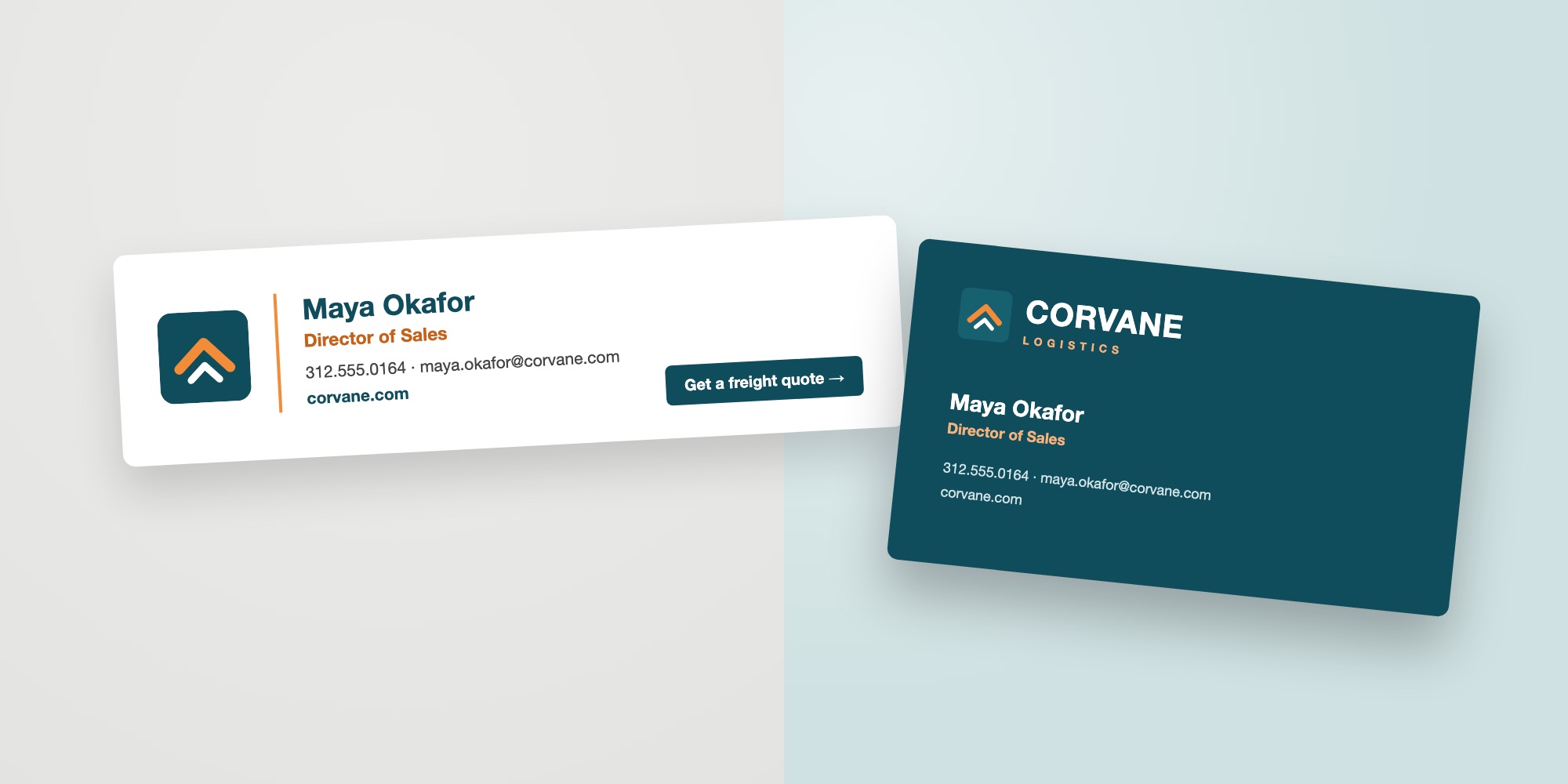
Your email signature and your business card do the same job: they tell people who you are and how to reach you. When they match, every touchpoint looks like the same company.
If your team orders business cards from Brandly, use the same logo file and colors in your signature. A business card portal keeps everyone’s cards on one approved template, and a shared signature design does the same for email.
Brandly email signature FAQs
Is Brandly's email signature generator free?
Yes. You can build a signature, copy it into your email app and share the design with your team at no cost.
Do I need an account?
You can start building without one, and your draft is kept in your browser while you work. To save a signature so you can come back to it later, create a free Brandly account.
Which email apps does it work with?
The generator has step-by-step instructions for Gmail and Outlook on the web. For other email apps, choose the Code option to copy the signature’s HTML and paste it into your app’s signature setting.
Can I add my company logo?
Yes. Upload your logo in the Design step and adjust its size. You can also add a headshot on templates that support one.
Can my whole team use the same design?
Yes. Copy the share link from the Finish step and send it to your team. Each person opens the link, replaces the details with their own and copies the signature into their email app.
If I change the design, does everyone's signature update?
No. A signature is copied into each person’s email app, so a change means sharing the updated design and having each person copy it in again.
The takeaway
With Brandly’s free generator, you choose a template, add your details, set your logo and colors, and copy the signature into Gmail or Outlook. To give your whole team the same look, share the link and have each person fill in their own details.
Create your free email signature
New to email signatures? Our email signature guide covers what to include, design rules and common mistakes.
Set Up Your Free Business Card Portal
Get Started